1 November 2026
Free PDF Tools Compared: Which One Actually Handles Scanned Invoices
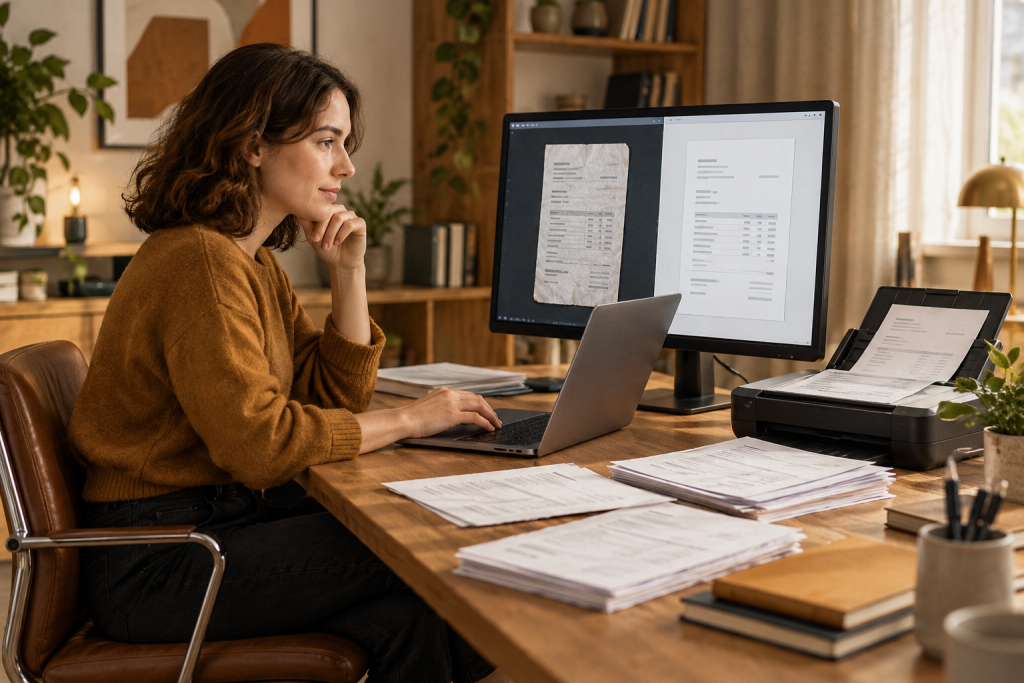
Scanned invoices are the worst kind of PDF. There’s no text layer, nothing to select, nothing to search. It’s a photograph of paper, sometimes crooked, sometimes faded, and every tool that promised to “edit any PDF” quietly falls apart the moment you drop one in.
I ran a stack of free PDF tools against the same pile of supplier invoices, scanned at an office copier, to see which ones could actually pull text out of an image, fill a form field on top of it, and merge a month’s worth into one statement file. Here’s what held up and what wasted my afternoon.
First, the split that matters
Most “free PDF editor” lists blur two different jobs. There’s editing (changing existing text inside a PDF) and there’s annotating (adding text, signatures, highlights on top). A scanned invoice almost never needs the first one. What it needs is OCR: a tool that reads the pixels and gives you something searchable, plus a way to fill in the bits your supplier left blank.
Get clear on which you need before you download anything, because most free tools only do the second job. As one 2026 roundup put it, most free tools “only allow adding new text as annotations” rather than modifying existing text. For invoices, that’s usually fine.
The tools that actually pulled text off scans
PDF-XChange Editor (Windows)
This is the one I keep installed. It’s Windows-only, but OCR is part of the free core feature set, along with text editing, annotations, form filling and page management, all with no watermark. It also came out ahead of every other program in that same test, opening large files noticeably quicker than Adobe Reader, which matters when you’re dragging in a 40-page scan batch.
The catch: merging and advanced content editing come with a little branding stamp unless you pay. So OCR and form filling are clean, but stitch three invoices into one file and you get a stamp on the result. For a single invoice you’ll email to a client, annoying. For internal filing, tolerable.
Sejda (web plus desktop)
The free tier is genuinely generous: it handles a 200 page file and 50 MB, no watermark, no account. It actually lets you change the words on the page, not merely stick comments on top. The browser tool covers most jobs, but anything carrying customer names and bank details should go through the desktop app, which works on the files right on your own machine. There’s no reason to upload a scanned invoice full of account numbers to a server when a local option exists.
LibreOffice Draw (desktop, all platforms)
Opens a PDF and treats each page as an editable canvas. You can click into text and change it, drag images around, add and delete pages. It’s the next best thing to paid Acrobat editing without spending a cent, per the same roundup. On scans, though, it’s a blunt instrument: complex layouts don’t always render perfectly and fonts get substituted if they aren’t installed. Fine for a quick correction on a clean digital invoice. Frustrating on a faded scan.
PDFgear (online and desktop)
Worth calling out because it’s genuinely 100% free: no sign-up, nothing sold against you, no stamps on your work, nothing held back for paying customers, no cap on how many files you edit. Files up to 100 MB. The online editor lets you add text boxes, comments, stamps, signatures, form fields and reorder pages. The important caveat: only the desktop app can change or replace existing text. The browser version just adds on top. For a scanned invoice where you’re filling in a blank or signing, the online tool is enough. For editing a typo in the supplier’s address, you need the desktop build.
The ones I’d skip for this job
Microsoft Edge has a surprisingly capable built-in editor: add text, highlight, shapes, fill form fields, sign, reorder pages, all zero-install. It can’t change existing text. For a quick signature on a scan, it’s the fastest thing on Windows. I use it. I just don’t expect OCR from it.
Smallpdf is polished but caps the free tier at 2 documents per day. Two invoices and you’re done until tomorrow. The paid plan is $9/month to lift it. For a business processing a stack at month-end, that limit bites fast.
ILovePDF isn’t built for text editing, but it’s the best free tool for the management side: merging, splitting, compressing, rotating, converting. No watermark on the free tier. When you’ve OCR’d your invoices and need to staple them into one PDF, this is where I’d go.
Apple Preview is fine on a Mac for annotating, form filling, signatures and merging (drag pages between thumbnails). No OCR, no existing-text editing. If you’re on macOS and only need to sign and combine, don’t install anything.
The privacy point nobody puts in the headline
Your scanned invoices contain supplier bank details, your own account numbers, and sometimes customer names and addresses. Web editors upload the file to their servers. That’s not a scandal, it’s just how they work, but it decides the tool for me. Desktop apps (LibreOffice Draw, PDF-XChange Editor, Preview, Sejda’s desktop build, PDFgear desktop) process locally. For anything confidential, that’s the line I draw. One browser-based editor, pdffreeeditor.com, markets itself on exactly this: local-only editing, no uploads, no watermarks, no accounts. If you’re going to use a web tool on invoice data, pick one that keeps the file on your machine.
What I actually do
My workflow, for what it’s worth, isn’t one tool. It’s three, and it costs nothing:
- PDFgear desktop to fill in form fields on a scanned invoice and drop a signature on it. Free, no watermark, local.
- PDF-XChange Editor to OCR a batch so the invoices become searchable later, which is the difference between finding that one supplier bill in ten seconds versus twenty minutes. I eat the small merge watermark.
- ILovePDF to merge and compress the month’s scans into one file for the accountant, since merging is clean and free there.
The honest verdict: no single free tool does OCR, form filling, text editing and clean merging all at once without a catch. But you don’t need one tool. You need to know which job each tool is good at, and to keep anything with account numbers off a server you don’t control.
If you’re on Windows and only install one thing, make it PDF-XChange Editor for the OCR. If you’re on a Mac and mostly sign and merge, Preview and PDFgear cover you. And if you’re still doing this by hand at tax time, that’s the real problem, not the tool.